Saturday, September 26, 2009

Veg Fish Farm Thai Restaurant


A gang of nine of us had lunch at the Fish Farm Thai Restaurant less than a week ago, our first time.

This Thai-owned restaurant is situated next to their own vegetable farm, at the bottom of a rocky hill and surrounded by lush tropical vegetation and 'sitting' on a very large pond (fish farm), teeming with 'home-bred' fishes like talapia merah, pak sow kong, escargot and others. Hence, its name 'Veg Fish Farm Thai Restaurant'.

It's a sort of rural village, well off from the main road, on an untarred bumpy beaten path of about 1 km or more, located near Ampang Lookout Point at Km 4, Jalan Ampang-Hulu Langat, 68000 Ampang, Selangor (Tel: 017-251 5236/019-260 6493).

Friday, September 25, 2009

Elegant Inn Hong Kong Cuisine, Cheras

Elegant Inn Hong Kong Cuisine at Taman Connaught
Elegant, it definitely is, inside but not as appeared outside. Like being in a mini 5-star hotel restaurant where service is superb and ambiance great too. As its name suggest, it is elegant dining alright, but be prepared to be hit with an Iraqi bomb - hehe...a hefty food bill at the end of it all!

Five of us just wanted to try out this eatery one Sunday afternoon about a month ago. Restaurant Elegant Inn Hong Kong Cuisine is located at:
No. 16, Jalan Waras 1,
Taman Connaught, Cheras
56100 Kuala Lumpur. (Tel: (603) 9130 2626)

Outside appearance is nothing to shout about, a very ordinary corner lot of a seemingly old shop-house block.
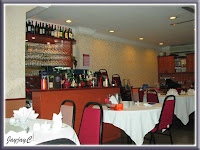
Inside the Elegant Inn Hong Kong Cuisine at Taman Connaught As I mentioned earlier, elegance is of the essence for that lunch. Table napkins and towels were provided. Plates were changed ever so often, after every serving, and carried out by uniformed waitresses. The lady proprietress was friendly and even taught us how to enjoy their food...she seemed very proud of their Hong Kong cuisine food creations, sharing with us some of the unique ingredients that were included.

On the whole, food was good and delicious, but in such small servings that we think 2 persons could have easily polished them all. Definitely inadequate to fill 5 tummies full...maybe just enough to tickle our stomachs.

Homemade tow foo, topped with salted and peppered Hong Kong boneless silver fish
We ordered 4 dishes as recommended by the lady proprietress.

First serving was a plate of homemade tow foo, topped with salted and peppered Hong Kong boneless silver fish.

This was lovely but pricey and strangely itemized on the bill. One single dish but bore two charges, that is, RM16 for 8 small cubes of tow foo and another RM16 for the silver fish.

Strange, huh?
Plate of Golden Fried Pork Rib
A plate of Golden Fried Pork Rib was then served individually to each person.

She told us that the meat is slightly tough as no unhealthy tenderizer had been indiscriminately added. Also, advised us to slice off the meat following the length of the bone...humph, did we look so ignorant that she had to teach us how to eat?

Whatever, this pork rib was tasty with just the right seasoning. But, there again, was it worth paying RM13 per piece?

Plate of Bitter Gourd with Salted Vegetables
Subsequent serving was a small plate of Bitter Gourd with Salted Vegetables (RM18) and ended with a plate of Fried Rice (RM22), another small serving.

The former is just so ordinary and even though the Fried Rice is one of their specialities, fried with diced dried shrimps from Hong Kong, and crabment, egg and garnished with spring onions, they were definitely exorbitantly priced too!

Anyway, I liked the fried rice as it wasn't oily at all and the rice grains perfectly cooked and fried.

Tea was RM2 per head which is normal and another RM9.50 for peanuts/towels. Total bill came up to RM164.35, inclusive of 5% service charge. Well, that's what you pay for elegant dining! Think, we retirees can do without that for ordinary lunches and dinners. Once bitten twice shy...we won't be 'hoodwinked' a second time for sure!!

Frankly, food business, like other businesses is sluggish during these times of economic downturn...there was only another table with diners besides us on a Sunday afternoon! That speaks volume, doesn't it? And, we were told that the Elegant Inn at this branch is only open for 3 days a week, that is, from Friday to Sunday. Hope, business picks up for them.


Tuesday, September 22, 2009

Use LinkWithin widget on your blog


Just had to share a helpful blogging tip here!

Recently stumbled upon this lovely LinkWithin widget at some recipe blogs (thanks to Cheah of No-frills Recipe), and was definitely captivated and had it installed pronto on this blog.

Basically, it will automatically generate from your blog archive to display your related posts with clickable thumbnails (3 or 4 images as you wish) at the end of each post, linking them to their own post page.

Obviously, a smart way to feature related posts on your blog!


How does the LinkWithin widget benefit you?
  • since posts are retrieved from your blog archive, past as well as recent related posts are made accessible to visitors. Probably, even reintroducing past forgotten posts for your own leisure reading, yes? I've noticed that most times its thumbnail suggestions are relevant with the post they're linked to;
  • one way to keep your visitors interested and absorb in what are available in your blog;
  • somehow, images are more catchy and attractive than just text links, thus draw a reader's attention and interest;
  • a chance to increase traffic to your blog and page views;
  • you get to showcase lots of your blog posts for free and ad-free too. Isn't that fantastic? Saves you immeasurable time should you ever want to foolishly attempt a D-I-Y similar display. Of course, some bloggers may opt out this widget, preferring to choose their own posts...well, each to their own...I'm just too lazy to try. Fact be told, I've been toying with the idea for a long time and this widget is like 'heaven-sent'. :-D
So, why wait! Learn how-to install this beneficial blog widget on your blog. It's so simple and easy. Just click on this LinkWithin link, follow its easy steps therein and start the goodies rolling into your blog...almost immediately!

I've read that this widget can be installed in Wordpress and Typepad, besides Blogger.

Point to note though, is that widget will show text links when most of the suggested posts do not have an image.

That said, some of my older posts before the installation of the widget fall in this category. But, in spite of inserting images in those posts subsequently so that they would appear in the the widget, the thumbnails were not showcased. So, I emailed the team at LinkWithin-Contact Us about my problem and to my delightful surprise, they redressed it very quickly and professionally!

Thumbs up for their excellent follow-up support service! I'm impressed!

To the LinkWithin team: my heartfelt gratitude and thanks, and God bless you all for your generosity in sharing!

Friday, September 18, 2009

Psalm 118:8 - Trust In God

Received a power point slide show via an email a few weeks ago about The Bible and was astounded by the profound message it portrayed. Thought I'd share here how awesome our Heavenly Father is - He alone knows what is best for us and ask us to trust in Him.

Quoted from the 11 slides as follows:
  1. This is pretty strange how it worked out this way. Even if you are not religious, you should read this.
  2. Q: What is the shortest chapter in the Bible?
    A: Psalm 117
  3. Q: What is the longest chapter in the Bible?
    A: Psalm 119
  4. Q: Which chapter is in the centre of the Bible?
    A: Psalm 118
  5. Facts: There are 594 chapters before Psalm 118. There are 594 chapters after Psalm 118. Add these numbers up and you get 1188.
    Q: What is the centre verse in the Bible?
    A: Psalm 118:8
  6. Does this verse say something significant about God's perfect will for our lives?
    The next time someone says they would like to find God's perfect will for their lives and that they want to be in the centre of His will, just send them to the centre of His Word!
  7. Psalm 118:8 reads: "It is better to trust in the LORD than to put confidence in man."
    Now, isn't that odd how this worked out...or was God in the centre of it? Before sending this, I said a prayer for you. Have you got a minute - 60 seconds for God? All you do is simply say a small prayer for the person who sent this to you.
  8. "Father God, bless my friend in whatever it is that you know he or she may be needing this day! May their life be full of your peace, prosperity, and power as they seek to have a close relationship with You....Amen."
  9. Then, send it on to 10 other people. Within hours, 10 people have prayed for you, and you caused many people pray to God for other people. Then sit back and watch the power of God at work in your life for doing the thing that you know He loves.
  10. When things get tough, always remember...faith doesn't get you around trouble, it gets you through it!
    "When you relinguish the desire to control your future, you obtain happiness."
  11. May God bless you!

The Divine Mercy Image, enthroned in our home
I do believe and trust in God, our Heavenly Father.

He asks us not to be afraid and promises to save us, knows each of us by name and we are precious to Him. Do refer to Isaiah 43:1-5 for comfort, assurance and strength.

God sends miracles everyday, in small and simple or even dramatic ways. We just have to train our eyes to be aware of them.

John, my beloved spouse and I experienced a miraculous protection from bodily harm during an attempted break-in into our home in late June.

And, it sure was a divine protection from The Divine Mercy, our Saviour and Redeemer!

We adore you O Christ and we bless You;
By Your Holy Cross, You have redeemed the world;
And, joy has come into the world!

Wednesday, September 16, 2009

Use ALT and TITLE attributes on images

It's highly recommended to use both the ALT and TITLE tags on images that you've uploaded to your blogs. Adding these attributes to name and title your photos are most beneficial for the following reasons:
  • Descriptive text in both the attributes can be read by search engines for keywords/page content, thus improve the blog's accessibility, a form of advertising.
  • An image without these attributes is just an image, illegible to search engines, unless you've already named your JPEG images before uploading from your computer. Most people just retain the IMG# as downloaded from their digital cameras.
  • A necessity as the ALT attribute in HTML is the alternate text description for images. Its sole purpose is to describe images. Should an image not be loadable due to text-only browsers (especially for disabled users), slow internet connections or whatever, at least the alternate text description of the image will be seen.
  • It enhances the blog's usability by providing helpful details or information for the readers or visitors.
  • It makes your images discoverable by Google and other photo search engines, hence a way of promoting your blog.
  • Some browsers support the TITLE attribute but not the ALT attribute or vice versa. So, my humble advice is to use both the attributes to images, which is the safest bet.

Here's how-to apply the ALT and TITLE attributes to your HTML codes for images:
  1. As an example, this is an unnamed image uploaded from my computer and does not have the ALT and TITLE attributes as yet. When viewed in the Edit Html mode of the New Post Editor, it bears the following HTML codes, as follows :-

    i) first section as enclosed within the symbols < and > shows this:

    <a href="https://blogger.googleusercontent.com/img/b/R29vZ2xl/AVvXsEi1ysYzAT6bHO-f3jrAFViXaLRBHX_UMukb4FRVWxb639PcBEcWmutH_v1LrW3LE9OfifZW7ehF0PRpET417Wp9WrSzALn-9DY_3lIg9t_PnPnFcG-e-rxWXD1PCWnsL_s52bB1/s1600-h/IMG_2526+copy.jpg" imageanchor="1" style="clear: right; float: right; margin-bottom: 1em; margin-left: 1em;">

    ii) second section for the image (img) tag, also enclosed within similar symbols < and ></a> shows this:

    <img border="0" src="https://blogger.googleusercontent.com/img/b/R29vZ2xl/AVvXsEi1ysYzAT6bHO-f3jrAFViXaLRBHX_UMukb4FRVWxb639PcBEcWmutH_v1LrW3LE9OfifZW7ehF0PRpET417Wp9WrSzALn-9DY_3lIg9t_PnPnFcG-e-rxWXD1PCWnsL_s52bB1/s320/IMG_2526+copy.jpg" /></a>
  2. Now, all you need to do is to add the TITLE attribute, title="" and the ALT attribute, alt="" and the description of the image within the inverted commas.
    The descriptive text should be informative and meaningful, preferably in a complete sentence. For this picture, the text description to be used is "A view of our tropical home-garden design in Kuala Lumpur, on Sept 13 2009".
    Try to follow these how-to steps (the descriptive texts are colored and bold for easy viewing) :

    (i) add title="" together with the descriptive text of the image to the first section of the HTML codes. For this example, it should appear like this:

    <a href="https://blogger.googleusercontent.com/img/b/R29vZ2xl/AVvXsEi1ysYzAT6bHO-f3jrAFViXaLRBHX_UMukb4FRVWxb639PcBEcWmutH_v1LrW3LE9OfifZW7ehF0PRpET417Wp9WrSzALn-9DY_3lIg9t_PnPnFcG-e-rxWXD1PCWnsL_s52bB1/s1600-h/IMG_2526+copy.jpg" imageanchor="1" style="clear: right; float: right; margin-bottom: 1em; margin-left: 1em;" title="A view of our tropical home-garden design in Kuala Lumpur, on Sept 13 2009">

    (ii) next, add alt="" with the alternate text for the image to the second section of the HTML codes. It should appear as such:

    <img alt="A view of our tropical home-garden design in Kuala Lumpur, on Sept 13 2009" border="0" src="https://blogger.googleusercontent.com/img/b/R29vZ2xl/AVvXsEi1ysYzAT6bHO-f3jrAFViXaLRBHX_UMukb4FRVWxb639PcBEcWmutH_v1LrW3LE9OfifZW7ehF0PRpET417Wp9WrSzALn-9DY_3lIg9t_PnPnFcG-e-rxWXD1PCWnsL_s52bB1/s320/IMG_2526+copy.jpg" /></a>
    (Tip: an easier way to do this is to copy the title attribute, already done in step (i), then paste it to where the alt attribute should be inserted and just change the word title to alt)

That's all you need to do...simple and easy! The final html codes should appear as such:

<a href="https://blogger.googleusercontent.com/img/b/R29vZ2xl/AVvXsEi1ysYzAT6bHO-f3jrAFViXaLRBHX_UMukb4FRVWxb639PcBEcWmutH_v1LrW3LE9OfifZW7ehF0PRpET417Wp9WrSzALn-9DY_3lIg9t_PnPnFcG-e-rxWXD1PCWnsL_s52bB1/s1600-h/IMG_2526+copy.jpg" imageanchor="1" style="clear: right; float: right; margin-bottom: 1em; margin-left: 1em;" title="A view of our tropical home-garden design in Kuala Lumpur, on Sept 13 2009"><img alt="A view of our tropical home-garden design in Kuala Lumpur, on Sept 13 2009" border="0" src="https://blogger.googleusercontent.com/img/b/R29vZ2xl/AVvXsEi1ysYzAT6bHO-f3jrAFViXaLRBHX_UMukb4FRVWxb639PcBEcWmutH_v1LrW3LE9OfifZW7ehF0PRpET417Wp9WrSzALn-9DY_3lIg9t_PnPnFcG-e-rxWXD1PCWnsL_s52bB1/s320/IMG_2526+copy.jpg" /></a>

To illustrate the positioning of ALT & TITLE attributes in HTML, for naming an image or picture
Click on the right image to view its larger version that illustrated clearly the correct insertion of both the ALT and TITLE tags.

The HTML codes for your uploaded image may not be exactly the same as the example given above, but the principle of inserting the TITLE and ALT tags is the same.


A view of our tropical home-garden design in Kuala Lumpur, on Sept 13 2009 Try it... a simple action that does wonders to your images and blog in general. Practice makes perfect.

The garden photo on the right illustrates the resulting effect. Just test by rolling your mouse over it to read the image's description (the title).

Incidentally, if you're interested to visit our tropical garden, it's just a click away to John & Jacq's Garden here.

Hope this HTML tutorial on titling and naming your images has been useful.


Useful external links:
Custom Search